Capture quickly
One fast entry point so tasks don’t sit in your head all day.
Clarify soon
Turn each captured thought into a real task — or a note, or trash.
Give each layer one job
Projects, sections, labels, and priorities stop overlapping and competing.
GuideFor Todoist
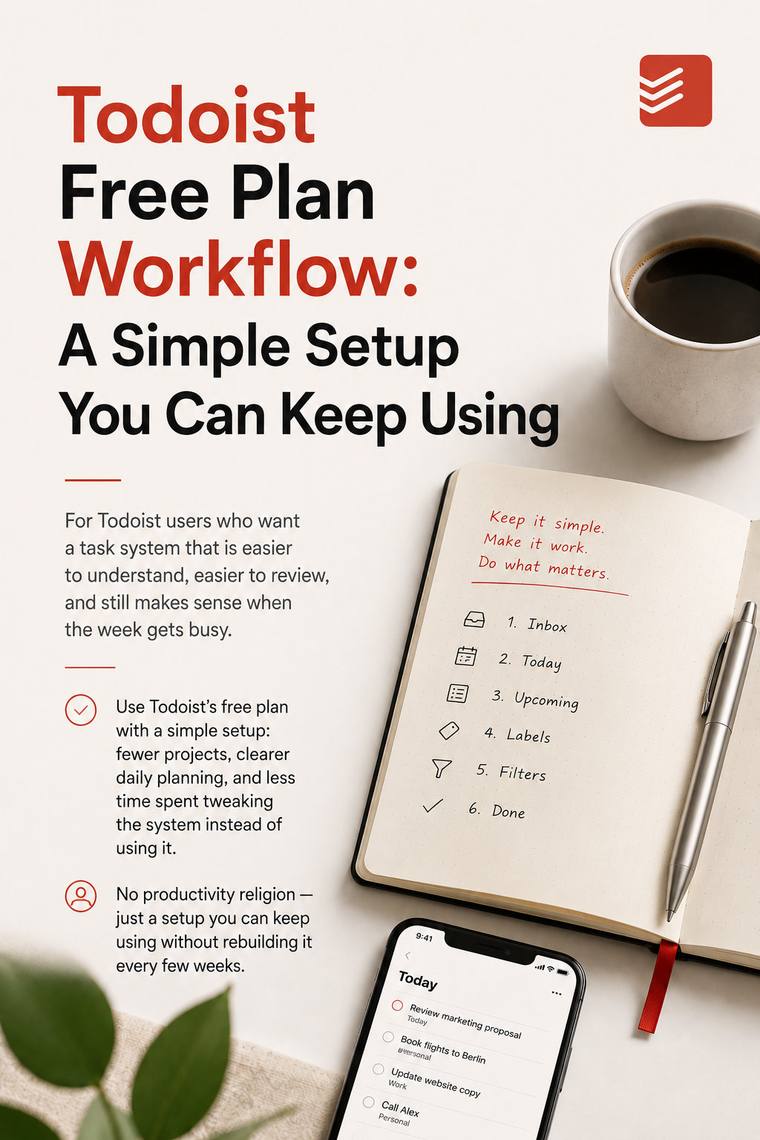
Todoist Free Plan Workflow:
A Simple Setup You Can Keep Using
A clean way to use Todoist on the free plan — fewer projects, clearer priorities, and a system you won’t have to rebuild every few weeks.
One-time purchase · Web version + PDF · Activation code by email after checkout
Updated
Already bought it? Enter your activation code — or sign in to check your access.
The real problem
The free plan isn’t the problem. Your setup is.
Most people don’t outgrow Todoist’s free plan — they outgrow their own system. Too many projects, labels they stop opening, a structure that needs rebuilding every few weeks. Planning turns into fiddling, and the app becomes one more thing to maintain.
What this is
One simple system you can actually keep.
This guide gives you a lean Todoist setup that fits inside the free plan and still makes sense when the week gets busy. No productivity religion — just a structure you set up once and keep using.
The shift
From a list you maintain to a list you use
Before. Many overlapping projects, unclear priorities, constant tweaking — everything feels urgent.
After. A few clear projects, an obvious daily plan, and a 10-minute weekly review that keeps it honest.
Illustration — a simplified view of the workflow, not a Todoist screenshot.
Outcomes
What you’ll set up
- A lean project structure that covers everything without the clutter
- A daily planning routine that takes about ten minutes
- A way to use priorities, dates, and deadlines without false urgency
- Two or three review views you’ll actually open
- A weekly reset that keeps the system from drifting
- What to skip on the free plan — and why you won’t miss it
Contents
What’s inside
Ten sections, from first capture to a full free-plan walkthrough and worksheets you can fill in. The free preview opens the marked items — two sections in full, the rest enough to read before you buy.
previewed free
The Foundation
- The Problem This Guide Solves
- Mini Audit Worksheet
- The Core Method
Shortcuts in the Workflow
- Why Shortcuts Matter
- Where Shortcuts Help Most
Capture & Clarity
- Make Quick Add Your Default Capture Habit
- Capture First. Clarify Soon
- The Inbox Sorting Path
- Need a Fuller Capture Reset?
- Add Meaning While You Type
- Vague Task Repair Kit
Structure That Stays Usable
- Give Each Layer One Job
- Projects, Sections, Labels & Priorities
- Treat Waiting For as Its Own Kind of Task
- Reference Isn’t a Task
- Someday / Maybe
- Minimum Viable Setup
Dates, Deadlines & Calendar Logic
- Separate Dates from Deadlines
- What Belongs on Calendar Instead
- Use Calendar for Time, Not Task Storage
Review & Filters
- Build Two or Three Review Views You’ll Actually Use
- Starter Review Views
Keep It Maintainable
- Keep the Workflow Light Enough to Use
- Red Tasks & Green Tasks
- The 10-Minute Daily Plan
- The Weekly Reset
Common Mistakes & Troubleshooting
- Common Mistakes
- Common Date Mistakes
- Troubleshooting
- Recovery Mode
Templates & Examples
- Ready-to-Copy Task Templates
- Todoist Free Setup Walkthrough
Implementation & Worksheets
- First Pass: 7 Days
- Final Setup Checklist
- Worksheet 1: Repair the Messy Tasks
- Worksheet 2: Project Card
- Worksheet 3: Weekly Reset
A look inside
Read the guide’s own words
No screenshots, no hype — here’s how the guide actually talks. The free preview is one click away.
“Many Todoist setups get messy for one simple reason: tasks enter the system faster than clarity does.”
“Capture is allowed to be imperfect. Long-term vagueness isn’t.”
Sample rule
"Each week, choose 3 green tasks. Not 20. Three."
Red tasks prevent problems. Green tasks create progress — and they rarely scream, so the guide shows you how to protect them on purpose.
Pay overdue billred
Draft proposal versiongreen
Update website homepagegreen
Honest fit
Is this for you?
This is for you if…
- You’re on Todoist’s free plan and don’t want to pay for Pro
- Your projects and labels have piled up and planning feels like work
- You want a setup you configure once and keep using
Maybe skip it if…
- You want a heavily customized, label-everything system
- You’re after a deep dive into Todoist’s advanced or paid features
- You already have a setup that works and you’re happy with it
Who made this
HKeys builds tools that help people work faster — keyboard-shortcut cheat sheets and training at hkeys.app. This guide comes from the same place: simple, repeatable systems over endless tweaking.
We built the Todoist setup we actually wanted to use, then wrote it down — tested it, found where people get stuck, and explained it as clearly as we could. If something’s confusing, you can always reach the team at info@hkeys.app.
Questions
Do I need Todoist Premium or Pro?
No. The entire setup is designed to work on Todoist’s free plan.
What format is the guide?
Both a PDF and a web version on hkeys.app. After checkout, Gumroad emails you an activation code that unlocks the web version; the PDF works as a printable, offline copy you can keep.
What’s inside, and how long is it?
A complete workflow across ten sections — capture, structure, dates and deadlines, review, a 10-minute daily plan, a weekly reset, ready-to-copy task templates, and a full free-plan walkthrough. Roughly 100 pages.
Will this work if I already use Todoist heavily?
It can, but it’s deliberately lean. If you want a heavily customized, label-everything system, this guide may feel too simple — that’s by design.
What if it’s not for me?
There’s a free preview that opens up most of the guide — the first two sections in full, plus the opening of capture, structure, dates, the setup walkthrough, and a worksheet — so you can judge its depth and voice before you buy. Purchases are final, so the preview is there to take the guesswork out.
How do I get access after buying?
After checkout, Gumroad emails your activation code. On hkeys.app, sign in, open the guide, click “I have an activation code,” enter the code from the email, and click Activate to unlock the web version.
Get the Todoist Free Plan Workflow
A one-time purchase, yours to keep — no subscription.
$9 one-time
Already bought it? Enter your activation code — or sign in to check your access.
After checkout, your activation code is emailed for the web version.